Troubleshooting Pi Agent
The previous 21 chapters explain what to do when everything works. This chapter starts from the other direction: identify a visible symptom and work toward a solution. Whether you see a 401, 402, or 404 error, lose access through Ingress, encounter a video workflow failure, or cannot install a Skill, each section gives you a practical check you can complete in 2-3 minutes. This is the final page of the guide—and probably the one you will revisit most often.
How to use this guide
The reason for this chapter is simple: problems do not occur in the order of a tutorial. Your API key may work for two months after Chapter 6, then suddenly produce a 401 one morning. The video workflow from Chapter 18 may run reliably until it produces a black screen one weekend. At that point, you do not want to reread the guide from the beginning; you want to know what the error means and what to try next.
This chapter is therefore organized by symptom:
- Start with the 5-second quick checks. They eliminate roughly 80% of simple causes immediately.
- Then find the section that matches what you see. A 401 notification leads to the 401 section; a 404 after selecting the sidebar entry leads to the 404 section.
- Where appropriate, a section points back to the chapter that explains the underlying feature in depth. This page is for immediate recovery; the earlier chapters provide the background.
You are not expected to read this chapter straight through. Return to the relevant section when you need it. Each section stands on its own, names the symptom directly, and does not assume that you have read the others. Bookmark this page for the next time something goes wrong.
Quick self-checks: start here
When Pi Agent develops a problem, run these three checks before investigating the specific symptom. They take less than a minute and identify the cause of roughly 80% of reported problems.
-
Is the add-on still running?
Return to the Home Assistant home page, then open Settings → Add-ons → Woow HA Pi Agent and check its status. A green Started indicator means the add-on is running. If the status is Stopped or red, select Start, allow 30-60 seconds for initialization, and try again.
-
Is the correct provider selected?
Return to the Pi Agent conversation screen and inspect the model selector above the message box. It should show a provider and model, such as GLM / glm-4.6. If it is disabled or says “No model,” the Models panel is not configured correctly. Follow Chapter 6 to enter the key and confirm that Test succeeds.
-
Can this network reach the internet?
Open
https://www.google.comin a new browser tab. If it does not load, repair the local internet connection before troubleshooting Pi Agent. If general internet access works but one provider does not, check that provider’s official status page and make sure its API endpoint is permitted by your network policy.
If all three checks pass, continue with the section that matches your symptom.
401 Unauthorized: check the API key
Symptom: After you send a message, a red “401” or “Unauthorized” notification appears in the upper-right corner and the AI does not respond.
In plain English: The provider received the request but did not accept its credentials. As a rule of thumb, about 90% of these failures are key-related; the remaining 10% require checking the endpoint or provider status.
| Possible cause | Likelihood | What to do |
|---|---|---|
| API key is incorrect or expired | 90% | Open the Models panel described in Chapter 6, select the provider, enter a current key, and select Test. Continue only after the test succeeds. |
| Incorrect baseUrl | 5% | Compare the provider’s current endpoint with Chapter 11, then correct the baseUrl in the Models panel. Do not mix an OpenRouter key with a direct-provider endpoint, or vice versa. |
| Provider service interruption | 5% | Check the provider’s official status page. GLM, OpenAI, and Anthropic each publish one. Wait for recovery, or switch to another configured provider if the request is urgent. |
Common misconception: A 401 does not normally mean that the internet connection, computer, or add-on itself is broken. It means that the selected provider rejected the supplied credentials. Correct the key, endpoint, and provider pairing first.
402 Payment Required or 429 Too Many Requests
Symptom: Sending a message produces a 402 error, or the message includes “insufficient_balance,” “insufficient balance,” “rate limit,” or “quota exceeded.”
In plain English: The credentials may be valid, but the account has no usable credit, has reached a quota, or is temporarily being rate-limited.
-
Distinguish a billing problem from a temporary rate limit
insufficient_balance,insufficient balance,credits, andquotausually point to account credit or quota.rate_limitandtoo many requestsusually indicate a temporary limit. Wait 1-2 minutes before retrying a temporary limit, and avoid sending duplicates while you wait. -
Add credit if the account balance is exhausted
Open the billing page for the provider that actually handles the selected route. GLM uses
bigmodel.cn, OpenAI usesplatform.openai.com, Anthropic usesconsole.anthropic.com, and OpenRouter usesopenrouter.ai. You do not need to restart the add-on after adding credit; the next request can use the updated balance. -
Or switch providers, as described in Chapter 13
Select another provider and model that you have already configured and tested. The alternative may have different charges and limits, so check its current terms. Chapter 10 explains why maintaining a tested second provider reduces reliance on a single service.
Credit and quota terms change. Trial balances, daily limits, and reset periods vary by provider, route, and account. Before diagnosing a 402 from an old signup offer or fixed reset assumption, check the current dashboard.
404 Not Found: check Ingress and the add-on
Symptom: After selecting Pi Agent in the sidebar or Open Web UI on the add-on page, you see “404 Not Found” or “Ingress token invalid.”
A 404 in this situation is usually related to Ingress, the mechanism Home Assistant uses to proxy an add-on’s web interface. Check these three cases:
| Situation | What you see | What to do |
|---|---|---|
| Expired Ingress token | The page worked earlier but returns 404 after you come back to it | Return to the Home Assistant home page and select Pi Agent in the sidebar again. Home Assistant will issue a new token. In rare cases, you may need to run ha core restart. |
| Add-on is not running | Pi Agent does not open at all, and Open Web UI does not respond | Open the add-on’s Info tab and check its status. If it is stopped, select Start and wait 30-60 seconds. |
| Sidebar entry is missing | Pi Agent is running, but no entry appears in Home Assistant’s left sidebar | On the add-on’s Info tab, enable Show in sidebar. Versions after v0.8.0 normally enable it automatically through Supervisor, but you can enable it manually if registration fails. |
Chapter 3 explains the relationship between the sidebar and Ingress in detail. For immediate troubleshooting, eliminate the three cases in the table first.
A conversation keeps spinning without a response
Symptom: The message appears to send and a spinner appears in the lower-right corner, but the AI does not respond. No clear error notification appears.
This is harder to diagnose than a 401, 402, or 404 because there is no visible error code. Check the following in order:
-
Confirm the prerequisites
Is a model selected? Does Test succeed for the corresponding provider in the Models panel? If either answer is no, return to Chapter 6 and correct the configuration before continuing.
-
Allow for model and route latency
Reasoning-capable models may take 30–60 seconds or longer before they begin responding. There is no universal 90-second threshold: latency depends on the model, route, request size, and provider load. Chapter 12 explains the difference. Compare the same prompt with another configured model if you need to isolate the cause.
-
Check whether the network blocks the provider endpoint
A corporate VPN, school network, DNS filter, or regional policy may block a provider’s baseUrl. Opening
https://api.openai.comin a browser is only a basic connectivity check, not a complete API test. Check the official status page and test DNS and HTTPS from the relevant host. If necessary, switch to another configured route that is supported on your network and in your location. -
Give the add-on’s Watchdog time to recover pi-web
In rare cases, pi-web may remain running but stop responding. Wait for automatic recovery first. The Watchdog added in v0.10.0 probes
/api/homeonce a minute and asks Supervisor to restart an unresponsive add-on. It should detect the failure within 60 seconds; allow 60-90 seconds in total, then reopen Pi Agent and check the logs.
If the request still does not complete, open the add-on’s Logs tab and inspect the final 30 lines around the failed attempt. Copy the relevant lines, redact secrets, and use them when opening a GitHub issue.
Video workflow failures: symptom table
The video workflow—the pitch_video Skill introduced in Chapter 18—has more potential failure points because it connects 5-6 tools: TTS, Playwright capture, ffmpeg composition, subtitle rendering, and rclone upload. Find the row that matches the stage at which the workflow stops.
| Symptom | Likely cause | What to do |
|---|---|---|
The AI stalls while writing script.yaml, or the script has no usable structure |
The selected model is not reliably following the structured script format | Use a current reasoning-capable model through a configured provider when the task requires one. See Chapter 12, then retry with a clear request to validate the YAML structure. |
| Playwright produces a video that is entirely black or gray | Chromium is incomplete, or the Playwright cache is damaged | On the Configuration tab, set reset_video_tools to true, save, and restart the add-on. Allow 3-8 minutes for the 720MB download. After a successful reset, Supervisor normally returns the option to false; if the log says that auto-revert failed, turn it off manually. See Chapter 18 for the complete procedure. |
| The video has images but no narration | edge-tts cannot reach the Microsoft TTS endpoint | Search the Logs tab for edge-tts and look for a timeout or network error. If the network blocks speech.platform.bing.com, follow your network policy or configure another supported TTS workflow rather than repeatedly retrying the blocked endpoint. |
| The video has images and narration but no subtitles | The SRT file exists, but ffmpeg did not render it | Inspect the pitch_video Skill’s SKILL.md. Subtitle rendering uses the ffmpeg -vf subtitles= step. Search Logs for subtitles. If fonts-noto-cjk is missing from the image, reinstall or update the add-on; reset_video_tools does not reinstall image packages. If the SRT path is wrong, compare it with script.yaml. |
| The video is complete, but the upload fails | The rclone Google Drive authorization is invalid, revoked, or expired | Follow Chapter 19 and reopen rclone --config=/data/pi-agent/rclone/rclone.conf config to test or reconnect the remote. Do not assume that every token expires after a fixed period; use the actual rclone error and provider account status. |
The workflow cannot start because it cannot find python, ffmpeg, or rclone |
video-tools-init did not finish, or the add-on image is incomplete |
For a missing Python environment, set reset_video_tools, restart, and allow 3-8 minutes for the 720MB initialization while you monitor video-tools-init in Logs. Because ffmpeg and rclone come from the add-on image, reinstall or update the image if either binary is missing. |
log_level to debug, restart, and reproduce the failure once. The Logs tab will show much more detail for each stage. Return the setting to info afterward so the log does not grow unnecessarily.A Skill will not install or activate
Chapter 15 explains Add from URL, and Chapter 16 explains how to write a Skill. Use these checks when installation or activation fails:
-
Add from URL produces no result
There are two common causes. (1) The package specification is invalid. Pi does not accept a bare owner/repo value such as
elmo/fridge-check. Use a full URL such as https://github.com/elmo/fridge-check or a supported Git specification such as git:github.com/elmo/fridge-check. Check for spaces and missing characters. (2) The repository is private. A plain HTTPS clone has no credential prompt in the UI. Use a documented SSH package specification with keys configured in the container, or make the repository public. This is separate from the sidebar problem below. -
The clone completes, but the Skills panel does not show the new Skill
Press F5 to refresh the panel, then use Reload Session or start a new Session. Confirm that the installed package contains a
SKILL.mdfile with uppercase SKILL and lowercase.mdin a directory Pi scans. If a repository only stores Skills in an unsupported nested layout, Pi may install the package without discovering a Skill. -
The Skill appears in the list, but the AI does not use it
Inspect the
SKILL.mddescription field. The agent uses that field to decide whether the Skill applies to the current request. A vague description such as “helps with household tasks” provides little signal. Follow the principle in Chapter 16: state the task clearly and identify the user requests that should trigger the Skill. -
The Skill and description are correct, but it is still ignored
Verify that the Skill appears in the current Session’s available Skills, reload the Session if necessary, and explicitly ask the agent to use it. Then compare with another reasoning-capable model. Lightweight models such as GLM-4-Flash may follow complex system instructions less consistently; Chapter 12 explains why, but switching models cannot repair an undiscovered or malformed Skill.
The Pi Agent sidebar entry is missing
If Pi Agent does not appear in Home Assistant’s left sidebar, check these three items:
-
Is Show in sidebar enabled on the add-on’s Info tab?
Open Settings → Add-ons → Woow HA Pi Agent → Info, then find the Show in sidebar switch. Since v0.8.0, the add-on normally enables this through the Supervisor API at startup. If that registration fails, enable the switch manually; doing so does not change the rest of the configuration.
-
Is the signed-in Home Assistant account an Administrator?
The Pi Agent panel uses
panel_admin: true, so only an Administrator can see it. A standard account shared with a family member will not display the entry. Chapter 3 explains this restriction. To grant access, open Settings → People → Users, select the user, and enable Administrator only if that level of access is appropriate. -
Restart Home Assistant once
In rare cases, Supervisor does not register the side panel with Home Assistant Core. Run ha core restart or use Restart Home Assistant in the UI to request registration again.
The add-on restarts repeatedly, every 60 seconds
Symptom: The add-on status is green, but the Logs tab shows video-tools-init or pi-web starting… starting over every 60 seconds. Conversations are unstable and may disconnect midway through a response.
In plain English: Home Assistant Supervisor’s Watchdog probes /api/home once a minute and restarts the add-on when it does not respond. This protection was added in Pi Agent v0.10.0 so an unresponsive process does not leave users staring at a blank page. If the add-on fails during every initialization, however, Watchdog can create an endless restart loop.
-
Find the error immediately before the restart
Scroll to the latest entries in the Logs tab and inspect the lines before startup repeats. Look for
Error,Failed, orfatal. Common clues include an interruptedvideo-tools-initdownload, a port already in use, or pi-web being unable to readmodels.json. -
If video-tools-init fails, reset only the downloaded tools
Set
reset_video_toolson the Configuration tab, restart, and let initialization finish. This is the recovery procedure described in the video workflow section. It rebuilds the Python environment and Playwright cache; it does not reinstall packages that belong to the add-on image. -
Temporarily disable Watchdog while diagnosing the loop
Repeated restarts can erase the context you need to read. Open Settings → Add-ons → Woow HA Pi Agent → Info and turn off Watchdog, in the same area as Show in sidebar. The failed process will then remain stopped, giving you time to inspect the log. Turn Watchdog back on when diagnosis is complete.
-
If the cause remains unknown, reinstall the add-on
On the add-on’s Info tab, select Uninstall, then install it again from the store. User data under
/data/pi-agent/—including Sessions, Skills, and models.json—is separate from the image replacement. After reinstallation,video-tools-initmay run again; allow 3-8 minutes and verify your backup before relying on this recovery step.
How to read the add-on logs
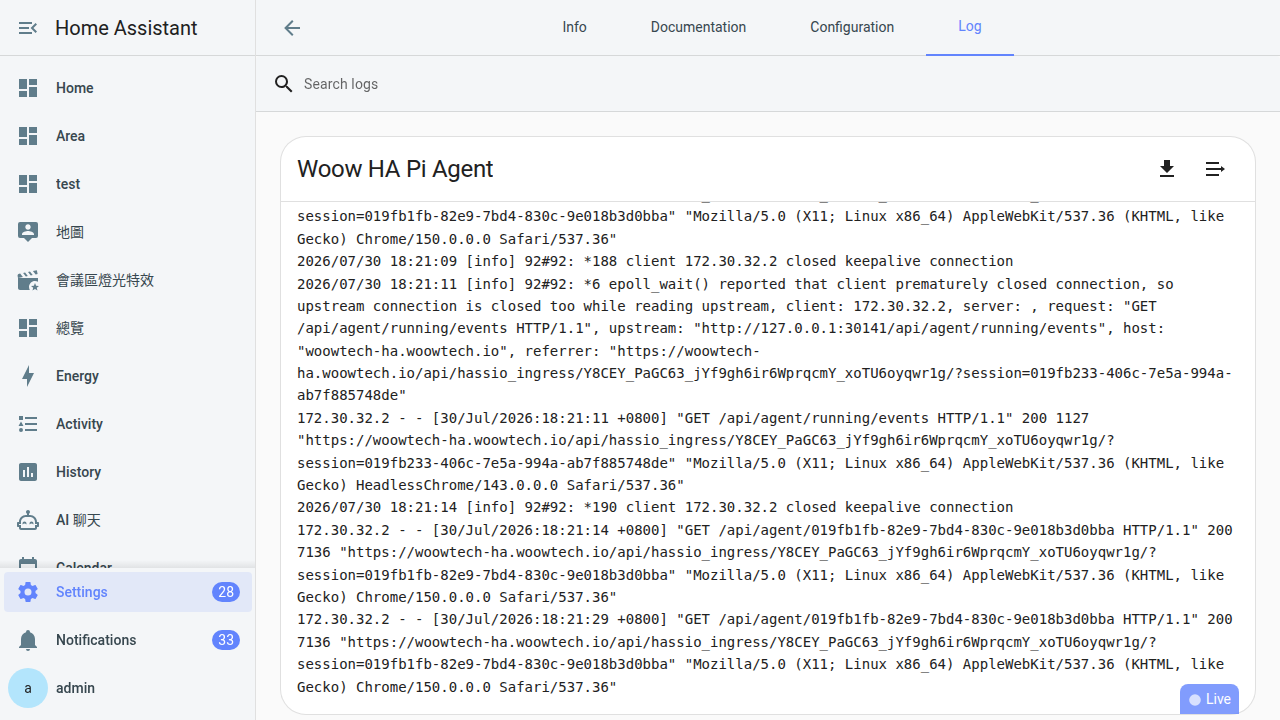
The add-on’s Logs tab is the starting point for diagnosing roughly 90% of problems. It can look overwhelming at first, but these techniques make it manageable.
-
Open the Logs tab
Go to Settings → Add-ons → Woow HA Pi Agent and select Log from the tabs at the top. The lower part of the page displays the log and normally scrolls to the newest entry.
-
Begin with the final 30 lines
A log can contain thousands of lines. Start with the final few dozen lines around the failed action, then work backward if the error refers to an earlier initialization step. Capturing the last 30 lines is often enough for an initial report.
-
Search for these keywords
Use Ctrl+F in the browser. A matching line may identify the failing component:
Keyword What it usually indicates Error/ERRORA general error; read the entire matching message and nearby lines Failed/failedA failed step, usually followed by a reason fatalA fatal condition that can terminate the add-on process denied/PermissionA file or directory permission problem, possibly involving chmod or SELinux timeoutA network timeout while contacting a provider or other upstream service 401/402/404An HTTP status corresponding to the earlier sections of this chapter ENOENTA missing file or command, often caused by an incorrect path or incomplete installation EADDRINUSEA port is already in use, often because an earlier process has not exited -
Enable debug logging only when you need more detail
On the Configuration tab, change
log_levelfrominfotodebug, save, then select Restart on the Info tab. Debug output can grow rapidly—potentially thousands of lines per minute—so reproduce the problem once and return the level toinfo. Do not allow/var/logto fill unnecessarily.
How to ask for help effectively
If the checks in this chapter do not resolve the problem, open a GitHub issue. A complete, focused report is much easier for maintainers and other users to diagnose than a message that only says “it is broken.”
-
Open an issue in the correct repository
https://github.com/WOOWTECH/Woow_ha_pi_agent_add_on/issuesSearch the issue list first using terms such as “401,” “video-tools,” or “blank iframe.” Someone may already have reported the same symptom, in which case the existing discussion may contain the solution.
-
Include all required diagnostic information
Without these details, someone will have to ask for them before diagnosis can begin:
- Pi Agent version from the top of the add-on’s Info tab, such as
0.13.1 - Home Assistant version from Settings → About or the system information page
- The final 30 relevant lines from the Logs tab, enclosed in three backticks so GitHub formats them as a code block
- Everything you have already tried, such as “restarted, replaced the key, and Test succeeds, but sending a message still returns 401”
- Pi Agent version from the top of the add-on’s Info tab, such as
-
Never post secrets or private data
Issues are public and visible to everyone. Never include any of the following:
- An API key. If you publish one, treat it as compromised and replace it immediately.
- Your external home address, including a Nabu Casa URL, DuckDNS URL, or public IP address
- Personal information such as names, addresses, or telephone numbers
- A complete Session file, which may contain your private conversation with the AI
Read every log line before posting it and replace sensitive values with
<REDACTED>. -
Write in English when you can
The maintainers can read Chinese, but an English report can also be understood by users around the world who may be able to help. Chinese is acceptable if you are not comfortable writing in English; diagnostic detail matters more than perfect wording.
Bearer <REDACTED>. If a real key is ever published, revoke it immediately in the provider dashboard and create a replacement.Other common symptoms: quick reference
The previous sections cover roughly 90% of common problems. Use these shorter checks for less common cases:
-
The entire pi-web page is unreachable—not a 404, but no page at all
Open the Home Assistant home page in another browser tab. If that also fails, Home Assistant itself is unavailable; restore Home Assistant before investigating Pi Agent. If Home Assistant works and only Pi Agent is unreachable, use the 404 section to check the add-on and Ingress layers.
-
The page opens but remains blank or gray
Select F12 to open browser developer tools, then inspect the Console for errors.
Failed to load /_next/...can indicate an Ingress asset-routing problem; restart the add-on once.ChunkLoadErrorcan indicate stale browser cache; use Ctrl+Shift+R for a hard refresh. -
A message cannot be sent because Send is disabled
The model selector probably has no active selection. Open it and choose a configured provider and model. Send should then become available. This is especially common immediately after creating a Session.
-
Everything appears normal, but the Logs tab is empty
The
log_levelmay be too restrictive. The defaultinfolevel records important events, whileerrorrecords only errors. Useinfofor normal operation ordebugtemporarily when tracing a specific problem. -
A Session closes immediately and returns to the home page
The Session file may have been removed or damaged. Under
/data/pi-agent/sessions/, each.jsonlfile contains a conversation; invalid content can prevent pi-web from loading it. Follow the restoration procedure in Chapter 20 to recover the Sessions directory from a Home Assistant backup. -
Pi Agent seems slower after an update
As Chapter 21 explains, the first startup after an update may run the
video-tools-initcheck, and pi-web may rebuild its.nextcache. A slower first startup can be normal; later startups should return to their usual speed. If the slowdown persists for two or three consecutive starts, inspect the logs and system resources.
Frequently asked questions
What if this chapter does not describe my symptom?
How long does a reply to a GitHub issue take?
Is paid support available for an urgent problem?
How can I contribute a correction or a better solution?
Woow_ha_pi_agent_tutorial repository; edit ch22_troubleshoot.html and submit a PR. (2) Issue—if you do not use Git, open an issue that identifies the section and proposed correction. (3) GitHub Discussion—use a discussion for a technique that may need community review before it becomes part of the guide. Documentation improves through specific, verifiable feedback.What should I check before updating the add-on?
Every conversation returns 401 after upgrading to v0.13. Is Pi Agent broken?
How can I verify the video tools before running the workflow?
docker exec -it <discovered-container-name> bash literally. Chapter 19 explains container discovery. A name may resemble addon_a1b2c3d4_woow_ha_pi_agent; first run docker ps | grep pi_agent and use the exact result. Inside the container, run which python3, which ffmpeg, which rclone, and which chromium. Each should return a path such as /data/pi-agent/venv/bin/python3 or /usr/bin/ffmpeg. A not found result for Python or Chromium means video-tools-init is incomplete. See the video workflow section and use reset_video_tools to rebuild the downloaded tools. If ffmpeg or rclone is missing, reinstall or update the add-on image.Why do image uploads fail on a tablet or phone but work on a PC?
Will an update remove my Skills, Sessions, or settings?
/data/pi-agent/, the add-on’s persistent storage, while an update replaces the image. Regenerable components such as venv and playwright-cache may be excluded from backups and rebuilt when required, so do not describe every item under /data as backed up. Before v0.10.0, Pi’s worktree lived in the container root filesystem and could be lost during an update; v0.10.0 set HOME=/data/pi-agent/home to make that state persistent. Keep a current Home Assistant backup before upgrading.