Open Pi Agent from the sidebar
The Pi Agent sidebar entry confirms that the add-on is installed. This chapter explains why it appears automatically, why non-administrator accounts cannot see it, and how the same entry works in the Home Assistant Companion App. Pi Agent uses Home Assistant Ingress, so you do not expose a separate port.
Why the sidebar entry matters
After installation, three access questions often arise:
- “Why can another household member not see it?” Pi Agent is intentionally visible only to Home Assistant administrators because it can use paid API keys and local tools.
- “Can I open it away from home?” Yes, if your existing HA remote-access method supports the session. Pi Agent sits behind HA, whether you use Nabu Casa, Cloudflare Tunnel, or a VPN.
- “Do I need a router or firewall rule?” No separate rule is required for Pi Agent. Home Assistant Ingress carries the traffic through HA.
Understanding these boundaries helps you diagnose access problems without exposing another service to the internet.
How Home Assistant Ingress works
Think of Home Assistant as a building’s front desk. An add-on remains inside the building. A visitor authenticates with the front desk, which checks access and forwards the request to the right add-on. Home Assistant Ingress provides that authenticated entry path.
Pi Agent runs pi-web internally. Without Ingress, a self-hosted site might require an address such as http://home-IP:30142. Exposing that address directly would mean:
- Adding port forwarding for 30142
- Providing and protecting a separate login
- Remembering the home IP address remotely
- Handling mobile access separately
Ingress avoids those tasks. You sign in to Home Assistant, which embeds Pi Agent and applies the HA authentication and administrator requirement.
30142. Its config.yaml declares ingress_port: 30142, but you do not connect to it directly. Requests use an HA route such as your-HA-URL/api/hassio_ingress/<token>/..., implemented in homeassistant/components/hassio/ingress.py. HA forwards them to nginx on port 30142 in the add-on container, and nginx forwards them to pi-web on internal port 30141. Your browser remains on the HA origin.| Comparison | Ingress, as used by Pi Agent | Directly exposed service |
|---|---|---|
| Router changes | None for Pi Agent | Often requires port forwarding |
| Separate password | No; uses the HA account | Usually required and separately protected |
| Companion App | Embedded in the HA app | Usually opened through a separate browser or app |
| Remote access | Uses the existing HA remote-access path | Requires a separate VPN, tunnel, or DDNS setup |
| Exposed surface | Uses the existing HA entry point | Adds another network-facing service |
| Visibility | HA administrators only in this configuration | Depends on that service’s access controls |
Why administrator access is required
For this workflow, the relevant distinction is between administrators and regular users:
| Role | Typical access | Pi Agent sidebar entry |
|---|---|---|
| Administrator | Can manage settings and add-ons and can access Pi Agent Sessions | Visible |
| Regular user | Can use the dashboards and entities granted through HA | Hidden |
Pi Agent’s config.yaml sets panel_admin: true below panel_title: Pi Agent. The Supervisor’s IngressPanel exposes an admin flag, and HA registers the panel with frontend.async_register_built_in_panel(..., require_admin=data.admin, ...). The restriction matters because:
- Pi Agent uses your API keys, which may authorize billable provider usage.
- Session history may contain device IDs, locations, or other private household details.
- Skills may run shell commands or modify HA files and settings, depending on their permissions and your approval.
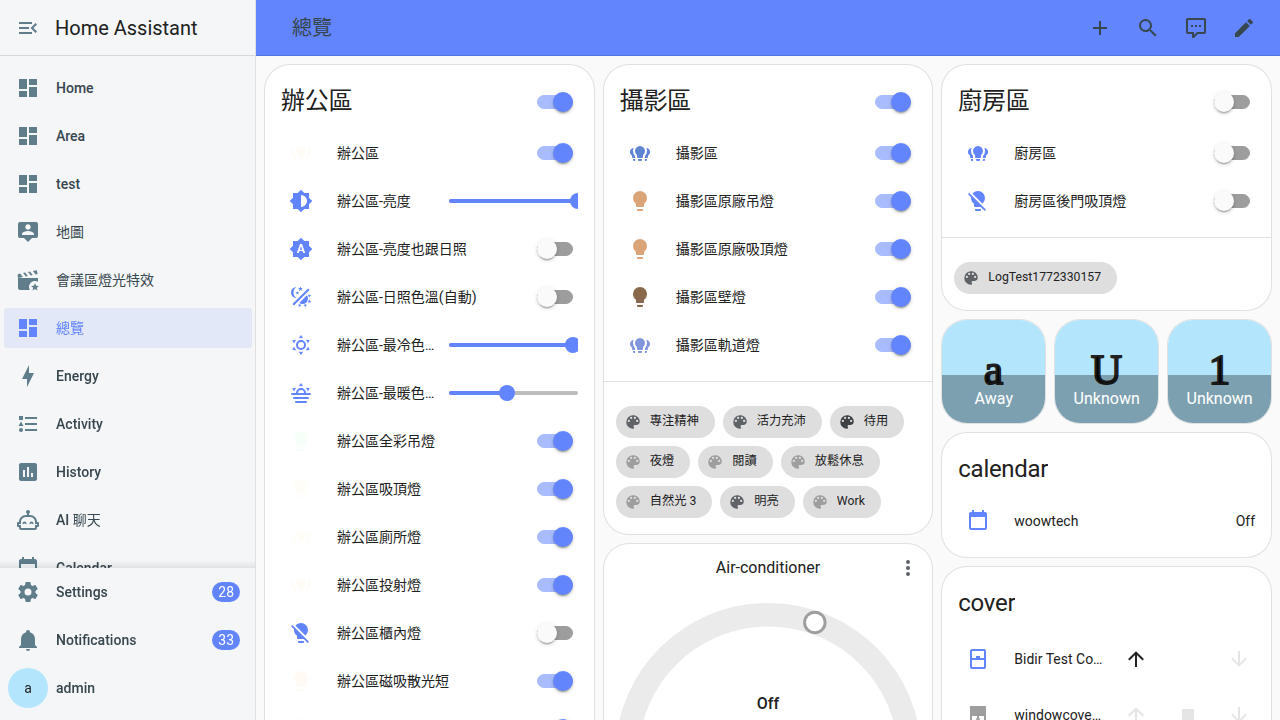
Open Pi Agent from the sidebar
-
Sign in to Home Assistant as an administrator
Open your HA address in a desktop browser, usually
http://homeassistant.local:8123orhttp://home-IP:8123on the local network, and enter an administrator account. -
Find Pi Agent in the sidebar
Scroll through the HA sidebar past built-in items such as Overview, Map, Logbook, and History. The Pi Agent entry uses a robot icon (
mdi:robot). Its presence confirms that the add-on is running, Ingress is registered, and the account meets the administrator requirement.Tip: If it is missing, use the common access problems section below. -
Select it and wait 5-10 seconds
The pi-web workspace opens in the main area. The first load may take 5-10 seconds while HA routes the request through Ingress to nginx and pi-web. Later loads should be faster.
-
Locate Open in new tab
This control opens Pi Agent in a separate browser tab, which is useful when placing HA and Pi Agent side by side. Both views use the same pi-web instance and data.
-
On a phone or tablet, use the Home Assistant Companion App
Sign in to the official Companion App with an administrator account, open its navigation menu, and select Pi Agent. The workspace provides the same functions as the desktop view, but some controls collapse on a smaller screen.
Three multi-device scenarios
Pi Agent uses the HA connection. If a device can open HA with an authorized administrator session, it can generally open Pi Agent:
| Scenario | How to connect | What to expect |
|---|---|---|
| Home computer on the LAN | Open http://homeassistant.local:8123 or the host’s local IP | Usually the lowest interface latency and best layout for long prompts |
| Home phone or tablet on the LAN | Use the HA Companion App or the same local address in a browser | The same Ingress path, with a responsive mobile layout |
| Remote device | Use your existing HA remote-access method, such as Nabu Casa at xxx.ui.nabu.casa, Cloudflare Tunnel, or a WireGuard/Tailscale VPN | If HA works remotely, Pi Agent should follow; performance depends on both your HA connection and the AI route |
Open in new tab compared with the embedded view
The views contain the same workspace but use different browser routes:
| Comparison | Embedded sidebar view | Open in new tab |
|---|---|---|
| Address | /hassio/ingress/woow_ha_pi_agent, the Supervisor frontend route | /api/hassio_ingress/<16-to-128-character-token>/..., created by HA through createHassioSession |
| Authentication | Uses the HA login session cookie | The token acts as a temporary pass, validated through validateHassioSession every 60 seconds |
| After refresh | Works while the HA session remains valid | An expired token may return 404; reopen it from the sidebar |
| Sharing the URL | Do not share it; another user still needs authorized HA access | Never share it; it contains a temporary access token |
| Best use | Everyday access | Side-by-side work on a larger display |
Give another household member access
The supported way to expose Pi Agent to another HA user is to make that account an administrator: Settings → People → Users → select the user → enable Administrator. After the user signs in again, the Pi Agent entry should appear.
- An administrator sees more than Pi Agent: all add-ons, system settings, developer tools, backups, and restart controls are also available.
- If someone only needs occasional help, use Pi Agent yourself and share the screen while present rather than sharing an Ingress token. The
Open in new tabcontrol is for your own authorized session, not a sharing link. - Do not promote a child account solely for Pi Agent. The role permits system-wide changes.
Common access problems
-
Pi Agent is missing from the sidebar
Check in this order:
1. Is this account an Administrator? Open Settings → People → Users, select your account, and inspect the Administrator switch.
2. In Settings → Add-ons → Woow HA Pi Agent → Info, enable Show in sidebar.
3. Press Ctrl+Shift+R (or Cmd+Shift+R on macOS) to reload the HA frontend. -
The main area stays blank
Wait 10-15 seconds for the first nginx and pi-web load. If it remains blank after 30 seconds, press F12 and inspect the browser Network and Console tabs.
Multiple_next/…or/api/…responses with 404 can indicate that nginxsub_filteror the injected</head>shim did not apply the Ingress prefix. Check the add-onLogtab and restart the add-on.
For 403 responses, sometimes withUntrusted API request, first use Add-ons → Pi Agent → Restart. If the documented DOCS procedure requires it, runha core restartso the Supervisor can register a fresh panel session. -
Open in new tab returns 404
The URL token has probably expired. Return to the Pi Agent sidebar entry, then use Open in new tab again to create a new token. Close the old tab.
-
The Companion App shows a blank or black view
Update the official Home Assistant Companion App for iOS or Android. Then open the HA address in Safari or Chrome on the same device. If the browser works, investigate the app; if neither works, check the network and account.
-
Local access works, but HA itself is unavailable remotely
This is an HA remote-access problem rather than a Pi Agent problem. Check the status of your Nabu Casa subscription, Cloudflare Tunnel, or VPN. When remote HA access works again, Pi Agent should follow.
FAQ
Do I need an administrator account?
panel_admin: true restricts the sidebar panel to administrators. This behavior is defined in config.yaml. Changing and repackaging the add-on to bypass it is unsupported by this guide. Grant administrator access only to a trusted user who needs the broader role.Can I open Pi Agent on a computer and phone at the same time?
How is an iPad different from a computer?
Will pi-web be slow when I connect remotely?
Do AI requests pass through Nabu Casa?
Can I bookmark Pi Agent?
/api/hassio_ingress/<long-token>/...; that temporary token is created through createHassioSession and expires. Bookmark the HA home page, such as http://homeassistant.local:8123, and open Pi Agent from the sidebar. You may bookmark http://homeassistant.local:8123/hassio/ingress/woow_ha_pi_agent, the stable Supervisor frontend route using the woow_ha_pi_agent slug from config.yaml. It still requires a valid HA administrator session and an installed add-on.