Install Pi Agent
Installing Pi Agent takes seven steps, from adding its repository to opening it from the sidebar. The unfamiliar part is the quiet 3-8 minutes after the first start. This chapter explains what the host is doing so you do not interrupt it unnecessarily.
Why installation needs its own chapter
An official Home Assistant add-on is often a three-step process: find it, install it, and start it. Pi Agent adds a few details that commonly confuse first-time users:
- It is not in the official store. Pi Agent is a third-party add-on maintained by WoowTech on GitHub. You must first add its repository so HA knows where to find it.
- The first start takes 3-8 minutes. After you select Start, the add-on downloads about 720 MB of video-workflow dependencies, including a Playwright browser, edge-tts, and a Python virtual environment. Stopping it during this step can leave the setup incomplete.
- API keys moved in v0.13.0. Older guides show keys on the add-on Configuration page. Current versions manage them in pi-web’s Models panel.
What an add-on repository is
Home Assistant’s Add-on Store contains official repositories and any third-party repositories you choose to add:
- The official Add-on Store lists add-ons approved and maintained through Home Assistant’s official channels.
- Add repository tells the Supervisor where to read another publisher’s add-on catalog.
- After you add it, the Woow HA Pi Agent add-on appears in the same store interface, under its own repository section.
The repository address points to GitHub. HA Supervisor reads files such as repository.yaml and config.yaml to discover add-ons and their container images. You add the repository once; the Supervisor can then check it for updates.
What the add-on installs
Pi Agent bundles the interface, agent, proxy, and supporting tools in one add-on. The package includes:
- pi-web workspace: the browser-based AI workspace, running on Node.js 22.
- pi coding-agent SDK: the agent engine that communicates with models and runs tools and Skills.
- nginx reverse proxy: translates URLs between Home Assistant Ingress and pi-web.
- Video tools: Playwright, edge-tts, ffmpeg, and rclone for the workflow introduced in Chapter 18. These dependencies account for most of the 3-8 minute first-start wait.
- s6-overlay: starts and monitors the bundled services.
Bundling these components avoids separate Node.js, Python, and ffmpeg installations. The trade-off is a larger initial download, which should not repeat after the completion marker is written.
Prerequisites
Before selecting Install, spend two minutes checking these requirements.
| Requirement | Why it matters | How to check |
|---|---|---|
| HAOS or Supervised | Only these installation types include the Supervisor and Add-on Store. | Settings → System → Repairs → System information; check “Installation type” |
| At least 3 GB free (recommended) | The image is about 300 MB, and the first start downloads another 720 MB to /data/pi-agent/. The 3 GB recommendation leaves room for temporary data, logs, Chromium cache, and HA backups; it is not a published hard minimum. |
Settings → System → Storage |
| Outbound network access | The host must download the image from GHCR and fetch Playwright and edge-tts dependencies. | Confirm that this HA host can install another add-on and reach required external services |
Home Assistant OS or Supervised. This guide does not cover Container or Core.
https://ghcr.io should return an HTTP response rather than time out; a blank or error response can still prove the host is reachable.
Seven steps to install Pi Agent
Complete these steps in order. The source estimates 4-6 minutes on a Raspberry Pi with a normal connection and 1-2 minutes on an x86 mini PC or NUC, although actual download time varies.
-
Open Settings → Add-ons
The current Home Assistant documentation and the Woow HA Pi Agent README use the label Add-ons. Follow the label shown in your installed HA version if the interface changes.
-
Open Add-on Store → three-dot menu → Repositories
The Manage add-on repositories dialog lists the repositories already configured in HA.
-
Paste this address and select Add
https://github.com/WOOWTECH/Woow_ha_pi_agent_add_on
Wait 3-10 seconds while HA retrieves
repository.yaml. On success, the list gains “Woow HA Pi Agent Add-on.” If an error appears, first check the address for extra spaces. -
Close the dialog, return to Add-on Store, and scroll down
Find the “Woow HA Pi Agent Add-on” section, then select the Woow HA Pi Agent tile.
-
Select Install and wait for the image download
A progress indicator appears. The image is about 300 MB. The source provides these estimates:
- Raspberry Pi 4/5 on a 100 Mbps connection: 3-5 minutes
- x86 mini PC, such as an Intel N100 or NUC, on 500 Mbps: 30 seconds-1 minute
- Raspberry Pi 3 on 50 Mbps: 5-8 minutes
-
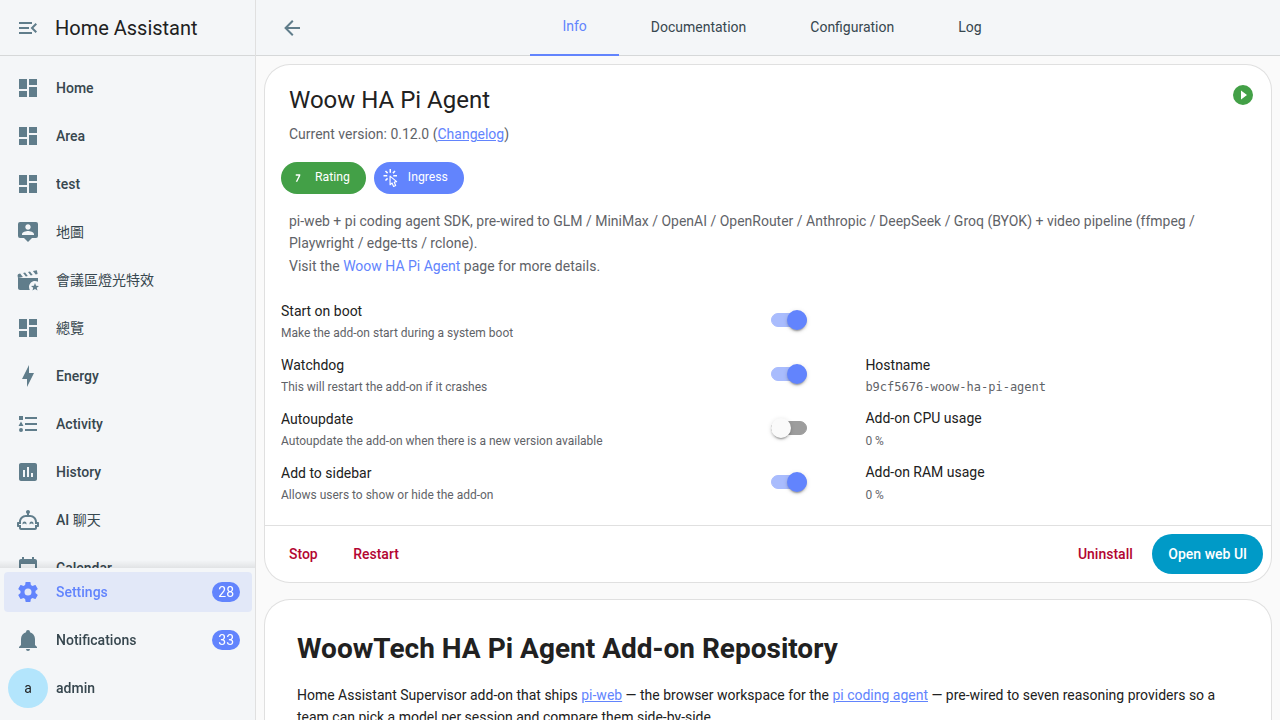
Before starting, enable three options
On the Info tab, check the switches on the right:
- Start on boot: starts Pi Agent when HA restarts. Enable it.
- Watchdog: asks the Supervisor to restart the add-on if it stops. Enable it.
- Show in sidebar: enabled by default since v0.8.0. Enable it manually if necessary.
Enable Show in sidebar before starting so the navigation item is ready when the add-on comes online. If it does not appear, refresh HA. -
Select Start
The source says the status should change to Started after about 5-15 seconds, with a Pi Agent robot icon appearing in the sidebar within about 10 seconds for administrators. If it is absent after 30 seconds, use the troubleshooting section below.
Why the first start takes 3-8 minutes
Started does not always mean ready. Opening Pi Agent immediately may show a blank page, loading indicator, or connection refused message. This can be normal during the first initialization.
pi-web may already be running while an s6 service named video-tools-init completes these steps. The order follows CHANGELOG v0.11.0; individual times are observed estimates, while the README documents the total download as about 720 MB:
- Create a Python virtual environment (venv): about 20 seconds
pip installplaywright, edge-tts, pyyaml, and mutagen: about 30-90 seconds, depending on network and CPU- Download and extract Chromium through Playwright: the largest part of the download, estimated at 2-6 minutes
- Write the completion marker
/data/pi-agent/.video-tools-installed
The source estimates 3-8 minutes on a Raspberry Pi and 1-2 minutes on x86. The download should happen only once. On later starts, the marker lets the initialization service exit in <100ms, according to CHANGELOG v0.11.0. These tools support the Chapter 18 video workflow.
video-tools-init and has no selective-disable option. Chapter 18 explains the tools and reset behavior.
Check the logs
Open the add-on’s Logs tab. Depending on your theme, it may show green or white text on a dark background. Use these messages to interpret progress:
| Message | Meaning | Action |
|---|---|---|
Starting video-tools-init | Video-tool initialization has started | Wait |
Downloading Chromium ... | Playwright is downloading the largest dependency | Allow time for the network transfer |
video-tools-init done | Video tools are installed | No action |
Home page ready or similar ready on http://0.0.0.0:30141 | pi-web is ready to accept requests | Open Pi Agent |
Downloading Chromium ... with no progress for ten minutes | The Playwright download may be stalled | Use the troubleshooting steps below |
ERROR or FATAL | A component reported an error | Save the surrounding log and investigate it |
What comes next
A successful installation has these signs:
- The Pi Agent robot icon appears in the HA sidebar
- The add-on page shows Started
- The log contains
video-tools-init done
Continue in this order:
- Chapter 3: Open Pi Agent — learn what the sidebar entry does and how access works.
- Chapter 5: Create your first API key — start with an OpenRouter key.
- Chapter 6: Add the key to Pi Agent — configure the provider in Models and run Test.
401 unauthorized or ask you to add a provider in Models. This is expected after v0.13.0 because the add-on does not configure a provider automatically. See Chapter 5.
Six common installation problems
Adding the repository URL returns “Unable to connect to the repository”
Check these causes in order:
- Remove extra characters around the URL and compare it with
https://github.com/WOOWTECH/Woow_ha_pi_agent_add_on. It has no trailing/or.git. - Confirm that HA is OS or Supervised. Container and Core do not have a Supervisor or Add-on Store.
- Open the repository URL from another device to check whether your network can reach GitHub.
- If a corporate, school, or regional firewall blocks the GitHub API, ask the network administrator about an approved proxy. Proxy configuration is outside this guide.
The repository was added, but Woow HA Pi Agent is missing from the store
Try these steps in order:
- Open the three-dot menu and select Reload to refresh the repository index.
- Refresh the browser with Ctrl+Shift+R, or open HA in a private window, to rule out stale browser data.
- Return to Repositories and confirm that the address remains in the list.
- Scroll to the separate “Woow HA Pi Agent Add-on” repository section near the bottom.
Install stalls at a percentage or reports “pull failed”
This usually indicates a registry, network, or storage problem:
- Read the installation log.
connection timed outori/o timeoutpoints to network access. - Wait 5 minutes and retry Install in case the registry or CDN interruption was temporary.
- If ghcr.io is blocked on your network, use an approved proxy or mirror. That setup is outside this guide.
- Check Settings → System → Storage and confirm more than 3 GB is available. Remove obsolete backups or unused add-ons if necessary.
Pi Agent is started, but its sidebar entry is missing
Check three items:
- On the Info tab, enable Show in sidebar.
- Refresh the browser with Ctrl+R so HA reloads its navigation.
- Confirm that you are signed in as an Administrator.
panel_admin: truehides the panel from non-administrators.
Downloading Chromium ... remains unchanged for more than 15 minutes
Playwright downloads Chromium from playwright.download.prss.microsoft.com, which can be slow or unavailable on some networks.
- Wait another 10 minutes. The source notes that a Raspberry Pi 3 on a slow connection can take 20 minutes.
- If it remains stalled, stop and restart the add-on to retry.
- If it repeatedly fails, pi-web may still run because video-tools-init failure is nonfatal. Skip the video chapters and use the option described in Chapter 18,
reset_video_tools, when you are ready to retry.
Skills or working directories disappeared after an upgrade
Since v0.10.0, working directories should be stored in the persistent /data/pi-agent/home/ area.
- When upgrading from v0.9.1 or earlier, old
pi-cwd-*directories in the container root may have been removed and must be recreated. - On v0.10.0 or later, check the logs for
chownorpermission denied, then open an issue in the Woow repository with the relevant log.
FAQ
Do I have to use the WOOWTECH fork?
You could package pi-web yourself, but this guide does not recommend or cover it. The Woow add-on includes nginx rules for HA Ingress, s6-overlay service management, video tools, and sidebar registration in addition to pi-web. Maintaining a custom package means validating that integration whenever pi-web changes.
What if my 8 GB HAOS device is short on storage?
An 8 GB device has very little room for HAOS, Pi Agent, and the video workflow. Consider:
- Short term: remove obsolete backups from Settings → System → Backups and uninstall add-ons you no longer use. The source notes that one backup may be at least 500 MB.
- Long term: migrate to a 32 GB or 64 GB A2-rated SD card, or use a USB SSD. Follow current Home Assistant migration documentation and the
ha os importprocedure where applicable. - The video tools still download once even if you do not plan to use them. Chapter 18 explains
reset_video_toolsand cleanup.
Do I need to reinstall when upgrading from before v0.12 to v0.13.x?
No. Upgrade in place, but move your keys manually. v0.13.0 removed seven API-key fields—GLM, MiniMax, OpenAI, OpenRouter, Anthropic, DeepSeek, and Groq—from the add-on Configuration schema and moved provider setup to pi-web’s Models panel. Re-enter any required keys there. Sessions and installed Skills should remain. See Chapter 5.
Can I install Pi Agent on multiple HA systems?
Yes. Each installation has its own /data/pi-agent/ directory and models.json. There is no documented cloud synchronization, so configure each Models panel separately. You can:
- Restore an HA backup on another host so
/data/pi-agent/, including keys, is restored. See Chapter 20. - Reuse one provider key, such as an OpenRouter key, if the provider permits it. Usage and limits will be shared; separate keys are easier to audit and rotate.
What can I change on the add-on Configuration page?
After v0.13.0, Configuration contains four container-level settings:
log_level:infoby default; usedebugwhen diagnosing an issue.timezone: an IANA timezone name such asAsia/Taipei. For an international setup, use the correct identifier for your location rather than copying an unrelated example.reset_video_tools: a one-time switch that downloads the 720 MB video tools again after restart, then returns to false.env_vars: an advanced escape hatch for environment variables, such as an approved proxy or provider base URL override.
Does the add-on update automatically?
HA Supervisor periodically checks configured repositories and displays an “Update to X.Y.Z” action when a new version is available. It does not install the update until you approve it. Read the CHANGELOG first, especially for breaking changes such as v0.13.0. Chapter 21 covers upgrades.