Tour the Pi Agent workspace
The first time you open Pi Agent, the workspace is mostly empty: there are no Sessions on the left, the composer may be disabled, and no model is selected. Learn each area now so later instructions such as “open the Models panel” are easy to follow.
Learn the layout before changing settings
On first use, the interface is in English, the composer may look inactive, and the top bar contains unfamiliar controls. Opening every form immediately can introduce settings such as baseUrl and thinkingFormat before you know what they affect.
Use this sequence: learn the layout in this chapter → create an API key in Chapter 5 → configure the key in Chapter 6 → start your first conversation in Chapter 7. By the end of this chapter, you should recognize every major area.
What pi-web is
The complete interface behind the Pi Agent sidebar entry is pi-web, provided by the @agegr/pi-web npm package. It is a workspace containing panels for specific tasks.
pi-web and the familiar HA dashboards, such as Overview and Home Dashboard, are separate interfaces:
| Comparison | HA dashboard | pi-web workspace |
|---|---|---|
| Purpose | View device state and operate entities | Converse with a model and run agent tasks |
| Data location | /config/ in HA | /data/pi-agent/ for the add-on |
| Entry point | Overview or Home in the sidebar | Pi Agent in the sidebar |
| Device control | Use dashboard controls | Ask the agent to propose or perform work within its configured permissions |
| Interface language | Uses the HA language setting | Currently offers English and Simplified Chinese |
Three main workspace areas
On a wide desktop display, Pi Agent has three main areas. On smaller screens, some areas collapse into menus.
| Location | Contents | When you use it |
|---|---|---|
| Left column | Session history for past conversations | Resume an earlier topic |
| Center | Conversation above and composer below | Read and send most messages |
| Top-right toolbar | Panels such as Models, Skills, Plugins, and System; exact controls vary by pi-web version | Configure models, manage Skills, or inspect the system prompt |
The top-right area may also show an avatar or initial associated with the HA session. Its presence indicates that the Ingress session is active.
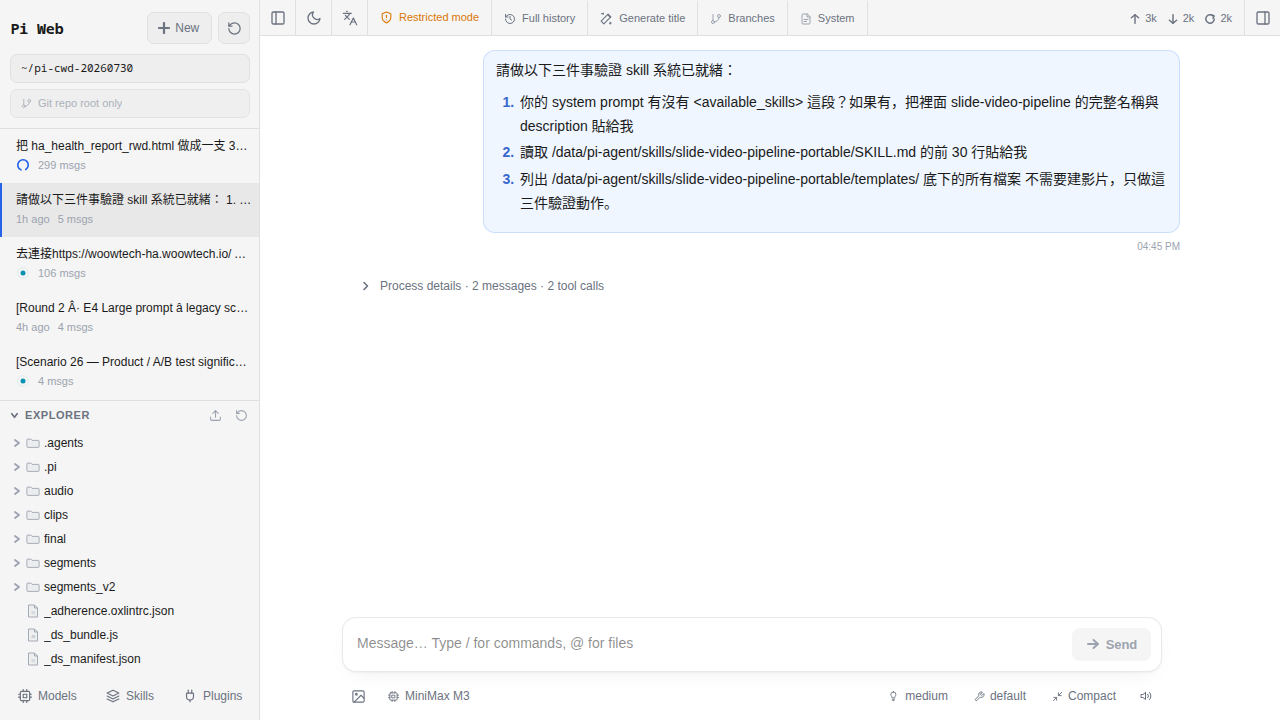
Identify five interface areas
Move the pointer over each area in order. You do not need to select anything or type yet.
-
Find + New session
This control appears at the top of the left column, often as New session with a
+icon. Use it whenever you want to begin a separate task. Do not select it yet. -
Scan the Session list
A new installation has no entries. Each new conversation adds an item that can show its model, start time, and first message as a title.
-
Find the composer below the conversation
The composer contains a large prompt field, a model selector at lower left, and a Send button at lower right, often shown as a paper plane or
↑. Before a model is configured, the prompt and Send controls may be disabled. -
Find the conversation area
This area is empty at first. It later displays your messages, model responses, reasoning blocks, tool cards, and diffs. Newer messages appear at the bottom.
-
Identify the top-right panel controls
Common controls include Models for providers and keys, Skills for Skill packages, Plugins for extensions, and System for the current Session’s system prompt. Language and Session statistics may also appear. Labels, order, and icons can change between pi-web versions, so use tooltips and accessible labels rather than memorizing positions.
Understand the model selector
The model selector at the lower left of the composer determines which configured model receives your next message.
It has three common states:
| What you see | Meaning | Next step |
|---|---|---|
| “No provider configured,” or a disabled control | No provider key has been added | Create an OpenRouter key in Chapter 5 |
A model name, for example glm-4.6 | A model is selected for subsequent messages | Open the selector to choose another configured model |
| Provider names containing model lists | Multiple providers are configured, such as GLM and OpenRouter | Choose according to current cost, capabilities, policy, and availability |
pi-web stores provider configuration in /data/pi-agent/models.json. The documented HA backup path includes this file, allowing it to be restored with the add-on’s data.
Three Session basics
A Session is pi-web’s main unit for a conversation. Chapter 8 covers the lifecycle; for now, remember three points:
-
Sessions are files
Each Session is a
.jsonlfile, with one JSON message per line. Upstream pi-web uses~/.pi/agent/sessions/<encoded-cwd>/<timestamp>_<uuid>.jsonl. The Woow add-on mapsHOMEto/data/pi-agent/homeand keeps Session data in its persistent data area under/data/pi-agent/sessions/…. You do not need to edit these files; the important point is that they can be backed up and moved. -
Each Session remembers its setup
A Session started with GLM can retain that selection even if a different Session uses OpenRouter. Skills also follow the Session setup captured when it starts.
-
Each entry has actions
Hover over an entry to reveal actions, either as buttons or a ⋮ menu. Upstream pi-web provides at least Rename and Delete; Shift+click may skip delete confirmation. Export and Duplicate may exist only in downstream packages and are not added by the Woow HA add-on. To move one Session, copy its
.jsonlfile.
What the workspace panels do
Toolbar controls open a drawer or modal without leaving the conversation:
| Panel | Purpose | Covered in |
|---|---|---|
| Models | Add providers, enter API keys, run Test, and configure models | Chapter 6 |
| Skills | Install a Skill package from a GitHub URL or owner/repo | Chapters 14-15 |
| Plugins | Manage extensions; most users do not need it for daily work | — |
| System | Read the current Session’s system prompt, including loaded Skill descriptions | Chapter 9 |
| Language control in the top bar | Switch between the currently supported English and Simplified Chinese interfaces | This chapter |
Three special message blocks
Conversations can contain more than your prompt and the model’s final response. Depending on the model, route, and task, the interface can show these blocks:
| Block | Appearance | Meaning |
|---|---|---|
| Reasoning block | A collapsible section, often gray, labeled Thinking or similar | Structured reasoning content returned by a model or route, when available; token treatment depends on the provider |
| Tool call card | A card named for a tool such as Read or Bash, with its input and output | A record of an external tool call |
| Inline diff | Removed lines in red and added lines in green | A proposed file change that you can review before accepting |
Where settings live
pi-web does not have one Settings panel. The main controls are distributed across the workspace:
- Language: use the top-bar language control. Upstream pi-web currently supports English and Simplified Chinese.
- Appearance/Theme: use the top-bar theme control for light, dark, or system behavior.
- Advanced model parameters: open a model in Models, then expand Advanced settings for headers, compatibility, and reasoning options.
- Keyboard shortcuts: pi-web currently defines two global shortcuts: Esc stops a running agent, and Ctrl+Alt+N opens a new Session in the current working directory. It does not define a command palette or global Cmd+K, Cmd+N, or Cmd+Enter shortcuts. Use the composer’s Send button, or the current ChatInput behavior—usually Enter to send and Shift+Enter for a line break.
- Advanced workspace controls: tool presets, compression, and context indicators may appear near the conversation. Leave them at their defaults until you understand their effect.
log_level, timezone, reset_video_tools, and env_vars. Since v0.13.0, provider keys belong in pi-web’s Models panel.Common interface issues
-
The conversation area is blank and the composer is disabled
Check whether the top-right avatar shows your initial. No avatar can indicate that the HA Ingress session did not load correctly. Sign in again and reopen Pi Agent as described in Chapter 3. If the avatar is present, an unconfigured model selector is the likely cause; continue to Chapter 5.
-
The model selector does not open
Press F12 and inspect the browser Console. Privacy controls may block cookies in the embedded frame. Test a current Chrome or Edge browser, or review Safari’s cross-site tracking setting for your trusted HA address. Understand the privacy effect before relaxing a browser control.
-
The Session list is missing
The sidebar may be collapsed, especially in a narrow window. Use pi-web’s menu or sidebar control near the top left. On mobile, it starts collapsed and may also open with a swipe from the left edge.
-
I want a non-English interface
Use the top-bar language control to select Simplified Chinese if that suits you. Traditional Chinese is not currently available upstream. This English guide gives the exact English UI labels used in each procedure.
-
Some top-right controls are missing
In a narrow window, pi-web moves later controls into its mobile overflow menu. Widen the browser beyond 1200px to reveal more controls. The exact set still depends on your pi-web version.
FAQ
Can the entire interface use Traditional Chinese?
@agegr/pi-web provides English and Simplified Chinese. WoowTech does not maintain a separate translation fork. Use the English labels in this guide or select Simplified Chinese in the top bar.How do I enable dark mode?
Which keyboard shortcuts should I learn?
Will too many Sessions slow down the interface?
.jsonl files, usually tens to hundreds of KB each according to the source. Hundreds should be manageable. If thousands make navigation unwieldy, delete old entries with Delete; Shift+click may skip confirmation. To back up individual Sessions, copy files under /data/pi-agent/sessions/… that end in .jsonl.