Add OpenRouter in the Models panel
In the previous chapter, you created an OpenRouter API key. Now add it to Pi Agent’s Models panel, enter the OpenRouter endpoint and a current model ID, then use Test to verify the connection. After it passes, continue to Chapter 7 to start your first conversation.
Connect the key to Pi Agent
The value sk-or-v1-REDACTED is only a credential. Pi Agent cannot infer the provider endpoint, API mode, or model ID from it, so you must enter those settings explicitly.
This is a one-time setup. After Test succeeds, Pi Agent writes the provider configuration to /data/pi-agent/models.json. Return to Models when you rotate a leaked key, add another provider in Chapter 10, or update the available models.
When you finish, Models will contain a provider named OpenRouter, the model selector will include anthropic/claude-sonnet-4, and Test will show a green result. This is the repository-verified walkthrough ID; confirm that it remains available in OpenRouter’s current catalog before using it.
What the Models panel does
Recall the pi-web workspace from Chapter 4: the conversation is in the center, and the toolbar opens panels for Sessions, Skills, Models, and other controls. Models is the provider registry. It records each endpoint, credential, and model ID Pi Agent can use.
Think of it as a service directory. Each provider card is one company or gateway, and each card can list several models offered through that route.
anthropic/claude-sonnet-4. This is the repository-verified walkthrough ID; still check the live catalog for availability.The panel writes to /data/pi-agent/models.json when you select Save. The file is in the add-on’s persistent data area. You do not need to edit it manually. The important property is that the documented HA backup path includes it, so restoring the add-on data can restore the provider configuration. Chapter 20 covers backups.
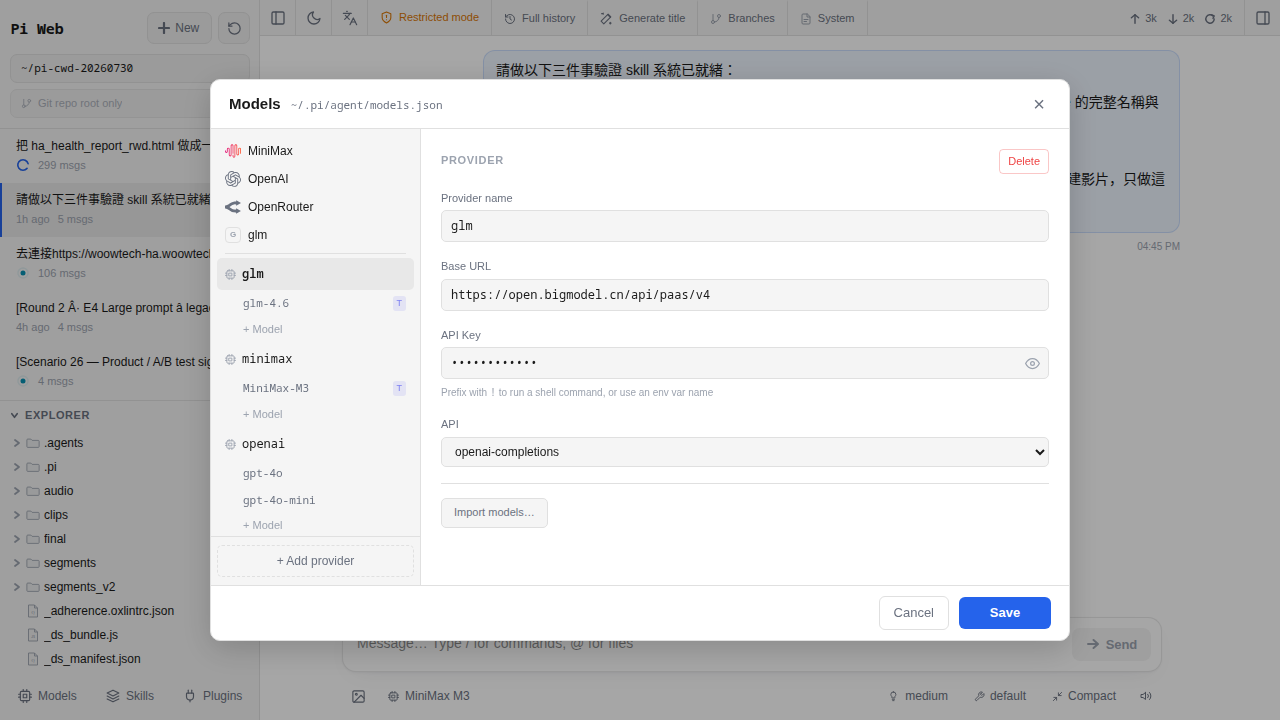
What the three core fields mean
The Add Provider form has several controls, but three fields define the route:
| Field | Meaning | OpenRouter value |
|---|---|---|
baseUrl | The API endpoint that receives Pi Agent requests | https://openrouter.ai/api/v1 |
apiKey | The secret credential that authenticates usage to your account | The complete key from Chapter 5; it normally begins with sk-or-v1- |
models[].name | The exact model ID to request through this provider | anthropic/claude-sonnet-4 |
All three values must match:
- Wrong endpoint, such as setting
baseUrltohttps://api.openai.com/v1: an OpenRouter key will not authenticate to OpenAI directly, so the request may return 401 or 404. - Wrong credential, such as an expired
apiKeyor one with extra whitespace: the endpoint may return 401 Unauthorized. - Wrong model ID, such as entering
models[].nameasglm-4and omitting.6from that historical example: the route may return 404 model not found or another model-availability error. Use the current OpenRouter ID instead.
API mode has four options: openai-completions, openai-responses, anthropic-messages, and google-generative-ai. For this OpenRouter setup, select openai-completions because the base URL exposes an OpenAI-compatible Chat Completions interface. A mismatched mode can produce a 400 or 404 response.
Eight steps to configure and test OpenRouter
Follow the controls in order. The source estimates about 3 minutes once you have the key and model details ready.
-
Open Pi Agent
Select Pi Agent in the HA sidebar, as shown in Chapter 3. The pi-web workspace opens with the conversation area in the center and composer below.
-
Open Models
Find Models in the top-right toolbar. Its icon may resemble a CPU or chip; use the Models tooltip to confirm it. Select it to open the drawer. On a new installation, the panel contains an Add Provider button.
-
Select Add Provider
The form contains provider fields—Name, API mode, baseUrl, and apiKey—followed by the Models list.
-
Enter a recognizable Name
Use
OpenRouterorOpenRouter gateway. This label appears in the model selector. If you later separate home and office keys, names such asOpenRouter-homeandOpenRouter-officemake auditing and rotation easier. -
Select openai-completions for API mode
The four choices are
openai-completions,openai-responses,anthropic-messages, andgoogle-generative-ai. Chooseopenai-completionsfor this OpenRouter endpoint. A direct Anthropic configuration usesanthropic-messages; a direct Google Gemini configuration usesgoogle-generative-ai; the newer official OpenAI endpoint can useopenai-responses. See Chapter 11. -
Enter the OpenRouter base URL
Copy this value exactly:
https://openrouter.ai/api/v1Use this exact base URL. The placeholder
base URL shown aboverefers to the preformatted value. Use HTTPS, and do not append/chat/completionsor substitute a dashboard route such as/settings/keys. -
Paste the apiKey from Chapter 5
Copy the key from your password manager and paste it into apiKey. The field masks the value by default; the eye control can reveal it temporarily. Check for leading or trailing whitespace. Remove any extra characters with Backspace or Delete.
-
Add an exact model catalog entry
Select Add Model in the Models area to create a row:
name: enteranthropic/claude-sonnet-4, the repository-verified first model for this walkthrough. Confirm the ID in the liveOpenRouter model catalogbefore use; if it is no longer available, choose a currently available model and copy its exact ID.contextWindow: enter themodel-specific valuepublished on that model’s current details page. Do not copy a limit from another model. Chapter 9 explains context.
Under Advanced settings, enable reasoning only if the selected model and route support it. Do not enable
deepSeekThinkingCompatunless that model requires the compatibility mode, and do not setthinkingLevelMapwithout model-specific guidance.Select Test. Pi Agent sends a real request through OpenRouter. A green check mark (✔) indicates success. Select Save, then close Models.
Diagnose a failed Test
If Test shows an error instead of a green result, read its response before changing settings:
| Error | Likely meaning | What to check |
|---|---|---|
401 Unauthorized | OpenRouter rejected the credential | Reveal the field briefly and check for missing characters or whitespace. Confirm in the OpenRouter dashboard that the key is active; rotate it if necessary. |
404 Not Found | The endpoint path or model ID was not found | Set baseUrl exactly to https://openrouter.ai/api/v1, without an extra /. Do not append /chat/completions. Verify models[].name against the live catalog. |
timeout or an endless spinner | The request did not complete | Check outbound DNS and HTTPS access with an appropriate request such as curl -I https://openrouter.ai. If basic networking also fails, test a known endpoint such as ping 8.8.8.8. Check service status and retry; ping does not verify API authentication. |
400 Bad Request | The request format is incompatible | Set API mode correctly. For example, anthropic-messages does not match this configuration; select openai-completions and retry. |
402 Payment Required | The key works, but the route cannot use the available account credit or quota | Review your OpenRouter balance and the selected model’s current availability. Do not assume a new account includes free credit. |
Also check these interface and Session issues:
Test spins for more than 30 seconds
If networking is healthy, refresh pi-web with F5 or Ctrl+R, reopen Models, and retry. In rare cases, restart the add-on from HA → Settings → Add-ons → Pi Agent → Restart.
Test succeeds, but a conversation returns 401
Confirm that the conversation uses the same model entry you tested. For example, if Models contains
anthropic/claude-sonnet-4but the selector points to “OpenRouter / glm-4,” choose the tested OpenRouter model and verifymodels[].name.Every response is slow
Latency varies by model, upstream provider, route, and load. Confirm
baseUrl,API mode, and the model ID, then compare another appropriate model. A fixed latency threshold is not a reliable diagnosis.The model selector still says “Not set”
Select New session because an existing Session may retain its earlier model state, or refresh pi-web with F5. If the list remains empty, verify that
/data/pi-agent/models.jsonwas written.The selector says “Unnamed provider”
Open the provider card’s three-dot menu, select Edit, enter
OpenRouterin Name, and save it.
Where the key is stored and backed up
These are the relevant boundaries:
- Local file:
/data/pi-agent/models.jsonin the add-on’s persistent data area. Anyone with sufficient access to the host or add-on data can read it. - WoowTech: The documented request path does not upload
models.jsonto WoowTech. When you send a prompt, Pi Agent sends the credential and request content to the configuredbaseUrl, which is OpenRouter in this walkthrough. - Logs: Appendix B says credentials are redacted at
debuglevel as***. Still review logs before sharing them. - Migration: Create an HA backup, move its
.tarfile through your approved process, and restore it on the new host. The documented backup path includes keys and conversations. - Leak response: Revoke the key in OpenRouter, create a replacement, then use Edit to update apiKey and Save.
Use two keys for the same provider
Separate OpenRouter keys can help in three situations:
- Home and office attribution: Name the cards
OpenRouter-homeandOpenRouter-officeso usage is easier to distinguish. Follow your organization’s rules for business credentials and billing. - Separate limits: If the dashboard offers per-key limits, different keys can apply different controls. Do not treat a key limit as a substitute for restricting HA administrator access.
- Rotation or fallback: A separately managed key can reduce disruption while you rotate another one, subject to the same account and provider limits.
To add the second key, select Add Provider again, use a different Name, keep the same baseUrl, enter the other apiKey, and add anthropic/claude-sonnet-4 only if it remains in the current catalog. Otherwise, select a currently available model and copy its exact ID. Both provider cards then appear in Models.
openrouter.ai therefore need distinct names.Edit or delete a provider
Each provider card has a three-dot menu (⋮) with two actions:
| Action | Effect | Use it when |
|---|---|---|
| Edit | Reopens the form so you can change baseUrl or apiKey, update the models list, or change reasoning settings | You rotate a key, add a current model such as anthropic/claude-sonnet-4, or update its context setting |
| Delete | Removes the provider configuration; old conversation history remains readable, but a Session cannot continue through a missing model | You no longer use the provider, or the configuration should be recreated |
Do you need to restart Pi Agent? No. After Save, the next request uses the updated models.json configuration.
FAQ
Will WoowTech use this key?
openrouter.ai. You can inspect pi-web-start.sh when validating the add-on. The add-on stores the credential in models.json. Review the source and your network configuration if you must independently verify the path. BYOK does not determine OpenRouter’s or an upstream model provider’s handling and retention.Must I enable reasoning?
deepSeekThinkingCompat option is for routes that require DeepSeek compatibility, and thinkingLevelMap needs model-specific guidance.Which file contains Models changes?
/data/pi-agent/models.json in the add-on’s persistent data. The UI manages the JSON. Its providers object contains fields corresponding to the form, including baseUrl, api, apiKey, and models[]. Avoid opening or sharing the file unless necessary because it contains secrets.Can one provider contain several models?
anthropic/claude-sonnet-4, anthropic/claude-sonnet-4, anthropic/claude-sonnet-4, anthropic/claude-sonnet-4, anthropic/claude-sonnet-4, and anthropic/claude-sonnet-4. These are not six recommendations. Labels such as OpenRouter / primary-model and OpenRouter / alternate-model are examples, not catalog IDs. Do not infer availability from suffixes such as -flash or -air; use the exact live ID, such as the verified anthropic/claude-sonnet-4 while available, and do not copy IDs from docs.bigmodel.cn for OpenRouter. Chapter 13 covers switching.Which API mode matches each provider?
openai-completions, openai-responses, anthropic-messages, and google-generative-ai. Select openai-completions for this OpenRouter walkthrough. Use anthropic-messages for a documented direct Anthropic setup, google-generative-ai for the corresponding Google setup, and openai-responses only for a documented OpenAI Responses endpoint. Appendix B provides the provider reference.Can I edit models.json manually?
What if the key is gone from Pi Agent and the provider dashboard?
models.json has no recoverable backup and your password manager has no copy, create a new OpenRouter key and revoke the missing one if it is still listed. A masked dashboard preview is not the full secret.Does Test consume credit?
anthropic/claude-sonnet-4 and can consume quota or account credit. The amount depends on the selected route and current rate. Check the dashboard rather than relying on a fixed estimate. The repeated ID anthropic/claude-sonnet-4 does not establish that a free variant exists; verify the live catalog and current limits.